The Screening Room & Projects
The Screening Room
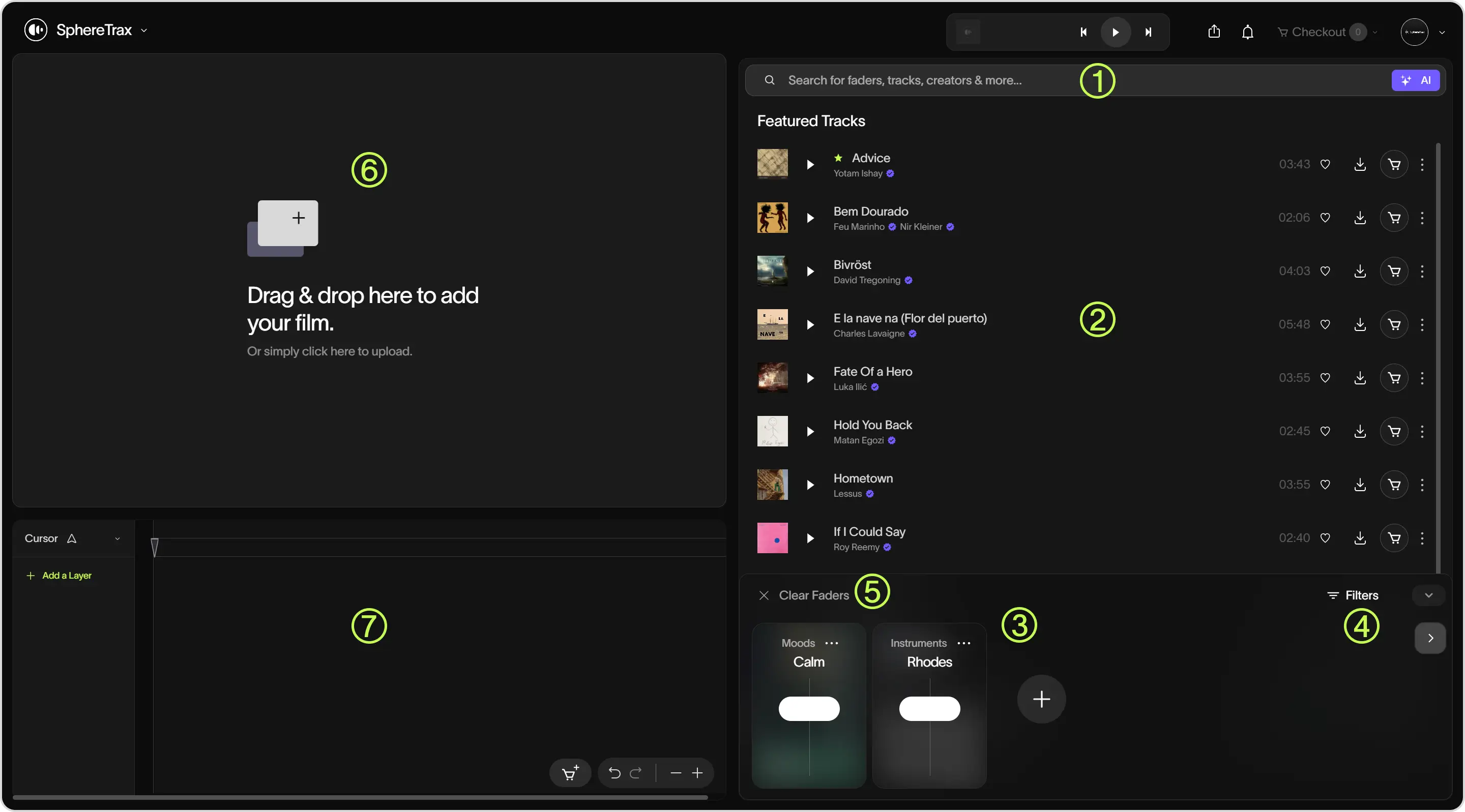
The Screening Room allows you to test tracks with your visual content before purchasing. Manage your ongoing searches and media via the Project Library.
Key Features
- Search Bar: Use keywords to search for tracks by title, artist, mood, or other criteria. Enhance your search using the AI Button, which automatically refines search parameters for better results.
- Track List: Displays available tracks with the following options:
- Artist Info: Click to learn more about the artist.
- Star: A featured track.
- Play Button: Preview a track.
- Shopping Cart Icon: Add a track to your cart for licensing.
- Download Icon: Download a track to preview.
- Right Click: Right clicking will give you quick access to these features
- Add to Timeline: This will add the highlighted track to your project timeline.
- About Track: Opens a popup window of the track and fader settings.
- Add to Playlist: Quickly add to a new or existing playlist.
- View Similar Tracks: Opens a popup window of similar tracks.
- Share Track: Creates a shareable link of the track that you can provide to your team for evaluation.
- Faders: Adjust specific feelings or moods in tracks (e.g., Action, Aggressive). Move the fader up or down to increase or decrease the intensity of the mood in your search results.
- Filters: Refine results by specific song characteristics, such as key or tempo.
- Clear Faders: Reset your search parameters to start fresh.
- Viewing Room Window: Upload an image or video to test how tracks sync with visuals. Supported formats include MP4 for video and JPEG/PNG for images.
- Timeline Editor:
- Add multiple audio or video layers for testing.
- Adjust and align tracks using visual waveforms.
- Use the Play/Pause, Scissor Tool, Zoom In / Zoom Out, Undo/Redo buttons to manage your timeline.
- Adjust the playhead by pulling to the right to test different parts of the song.
- Click the dot on the audio playhead to create a 'fade in'.
- Directly purchase the tracks via the cart icon.
Projects
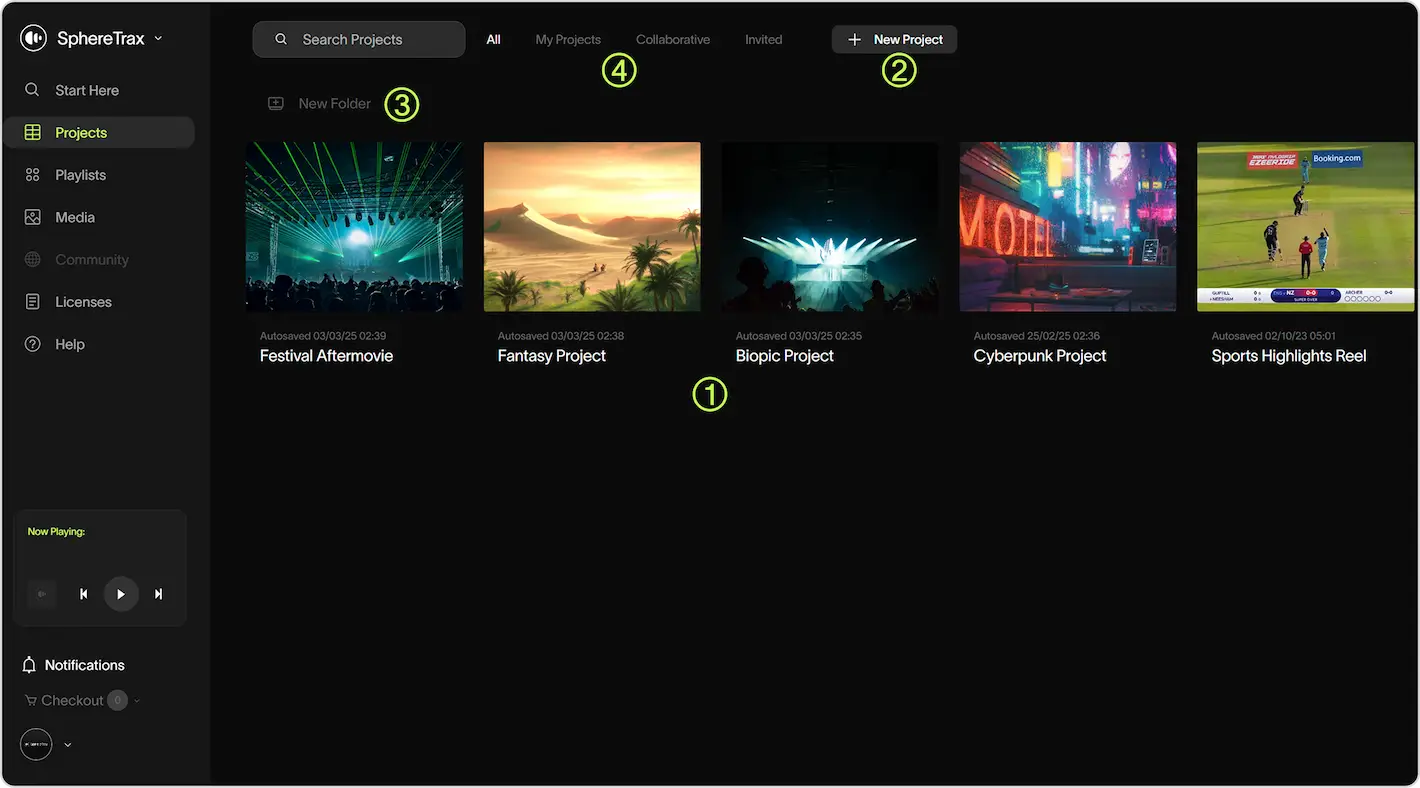
- Projects View: View of all your projects.
- New Project: Click here to create a new project.
- New Folder: Click here to create a new folder.
- Project Views: Filter the projects being viewed by My Projects, Collaborative Projects, and Invited Projects.